Transfer Animals
 Required Setup
- To use this feature, both the sender and receiver dairies must have PULSE enabled. Contact Us if you are using DairyComp, but are not yet connected to PULSE.
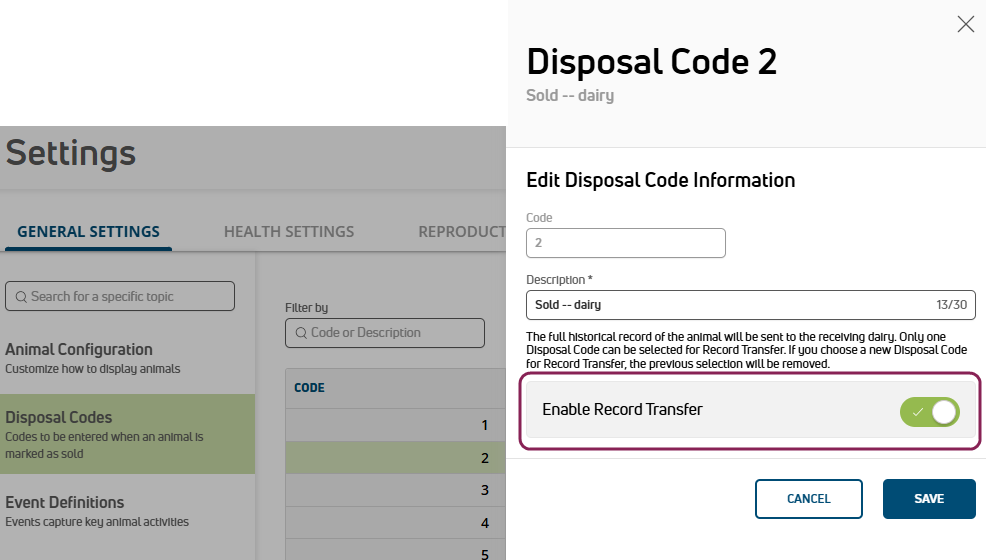
- DairyComp Unlimited dairies must enable a disposal code for records transfers. Go to DairyComp/MyDC menu > Settings > Disposal Codes and click the code to use:
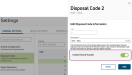
Be sure to use the enabled disposal code when entering a SOLD event for animals that are being transferred.
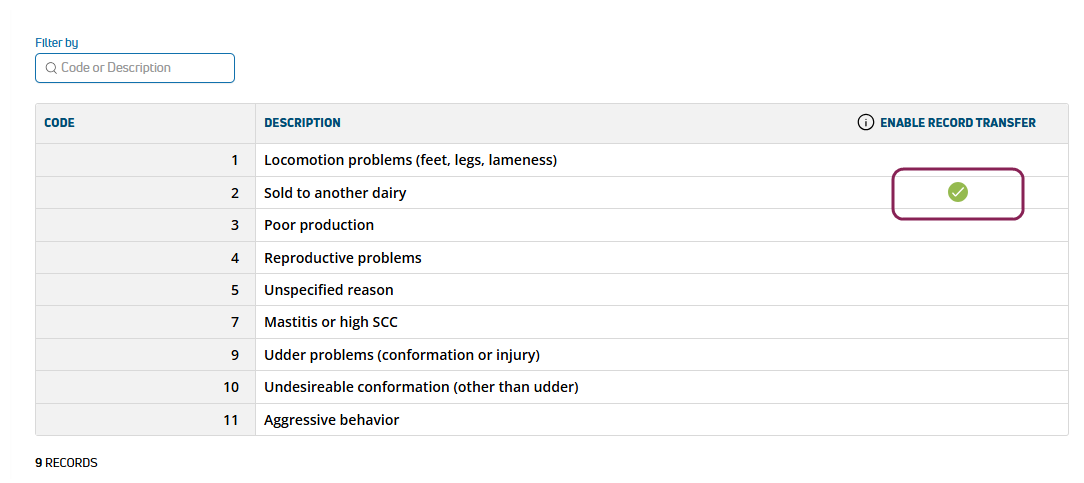
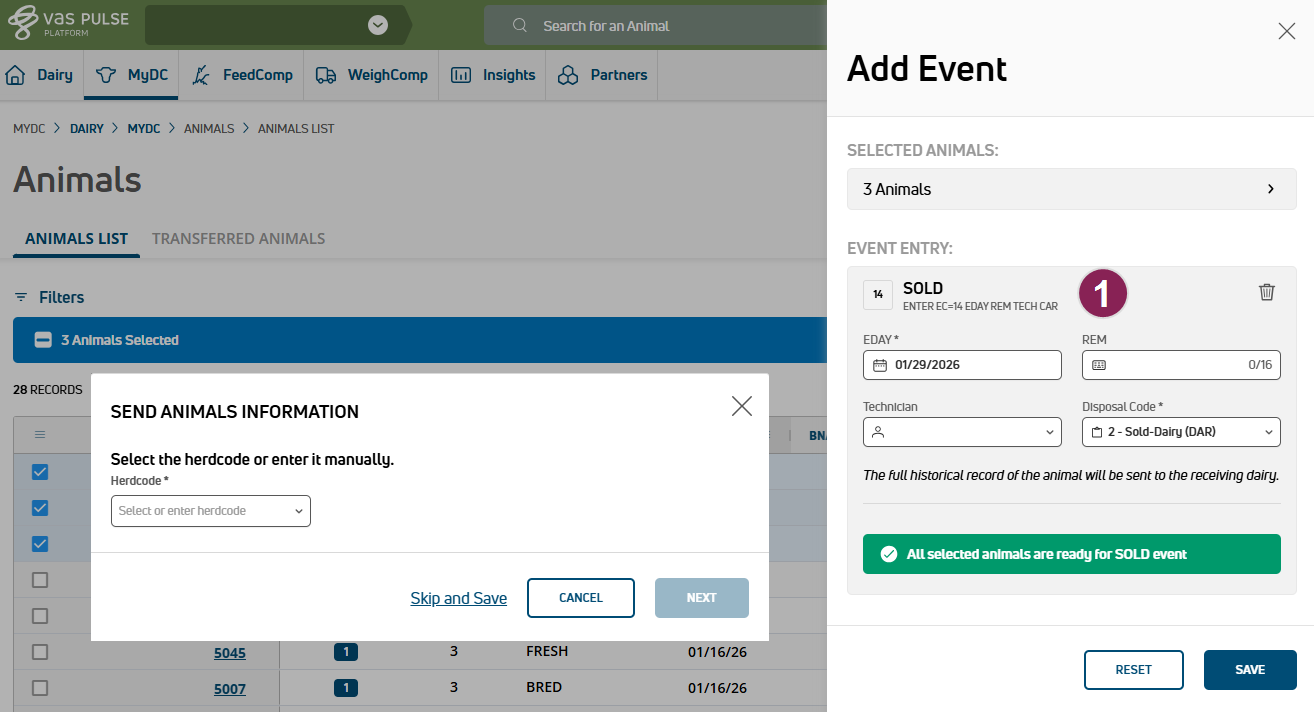
- MyDC dairies are configured to use disposal code 2 for record transfers by default. When entering the SOLD event, be sure to select this code to transfer the animal records:
 Required Permissions
Only users who are assigned to a Role with Herd Write permissions can use this feature. Owners receive notifications regarding transfers via email. See Edit Dairy User Permissions and Manage Dairy Roles for more information.
You can transfer animals and their associated records between two PULSE-enabled dairies or source farms. This feature streamlines selling animals or merging herds by keeping data consistent across locations.
- Use this feature for permanent relocations. For recurring data sync with heifer growers, continue using iTrans (iLoop and DNT files).
- For animals with previous lactations, PULSE sends data for all lactations automatically.
You can find this feature under the DairyComp/MyDC > Animals menu.
Follow the guidelines below for transferring or receiving animals:
-
Send Animals to Another Dairy
- From the Animals List, a worklist, or an Open Tasks list, select one or more animals to transfer. You can also transfer individual animals from their CowCard.
- Add a SOLD event to the animal(s) and select the disposal code enabled for record transfer. See Disposal Codes to learn more about this setting.
- Choose the destination dairy.
NOTE: If the destination dairy is set as discoverable in PULSE, you can search for it by name or herdcode. If it is not discoverable, you must enter the 8-digit herdcode manually. Contact the destination dairy if you do not have their herdcode. See Dairy Info to learn more about the discoverable setting.
- Select Save. The animals move to the Sent Animals tab. If you made a mistake and need to cancel the transfer, see Restore an Animal.
-
Receive Animals & Map Data
The process for receiving animals is slightly different depending on whether your dairy is set to discoverable in PULSE:
- Discoverable dairies: Automatically connect to receive transfers.
- Non-discoverable dairies: Manually enter the 8-digit herdcode when initiating a transfer. (If you do not have the herdcocde, contact the dairy.) The dairy owner then receives a connection request from the source farm via email (or in PULSE notifications
 at the top of the page and in your Message Center). After the dairy accepts the request, you can review animals pending transfer.
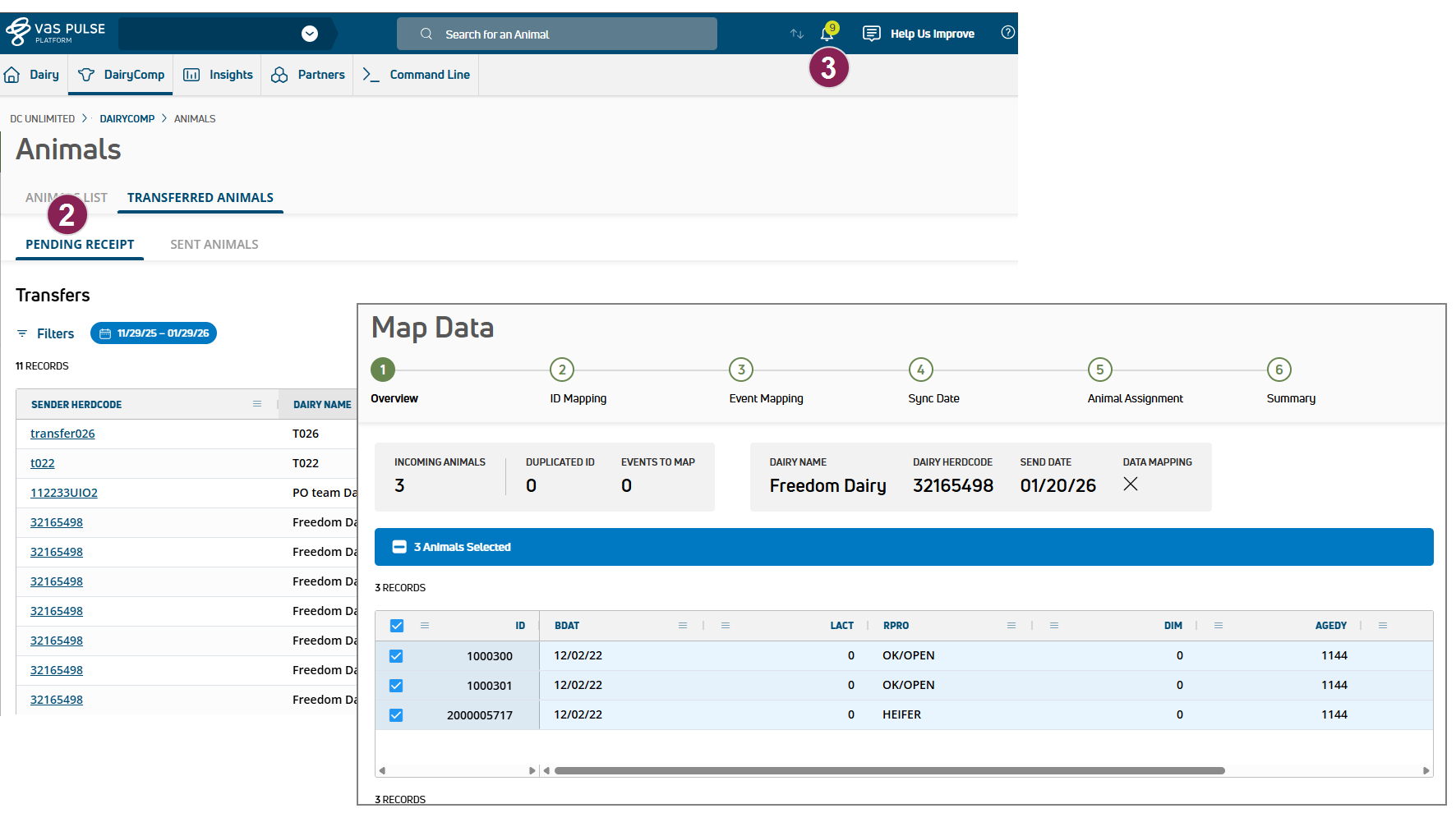
NOTE: See Dairy Info to learn more about the discoverable option.- After the connection to the sender dairy is made, go to DairyComp/MyDC > Animals > Transferred Animals > Pending Receipt tab.
- Click the sender herdcode to view pending animals.
- To review all animals together, check the box in the top row in the table.
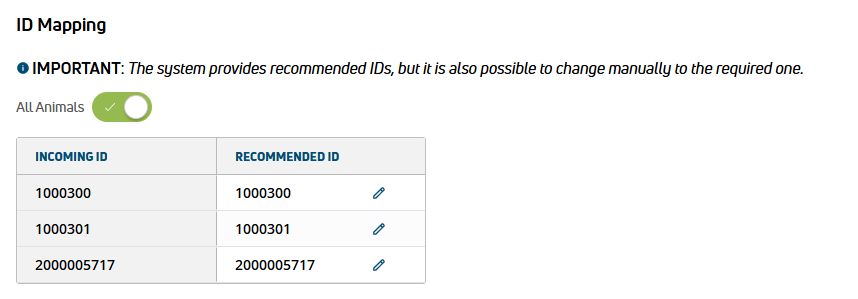
- Map animal IDs, events, sync date Date the animal was enrolled in an OvSynch program, and animal assignments as follows:
- ID Identifier: Click the toggle for All Animals and then the edit icon
 to adjust an animal's ID in your herd.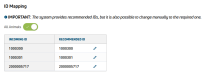
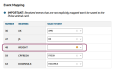
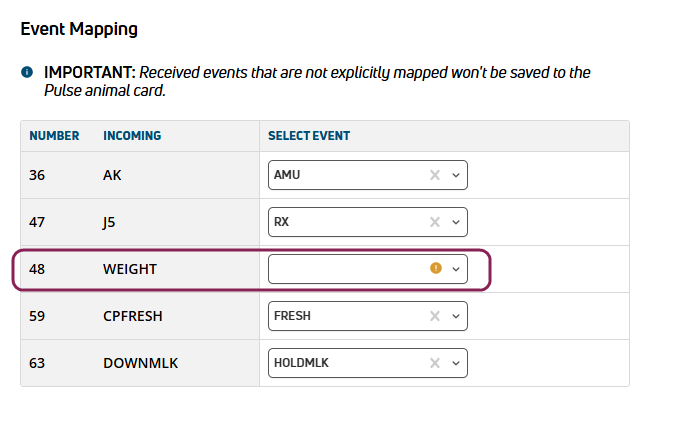
- Events: DairyComp Unlimited dairies can map events if the incoming animals have events that are named differently or do not exist in your dairy. Events for MyDC dairies are automatically mapped if they are standard events. Any events left unmapped are not saved to the animal's CowCard. See Event Mapping to learn more about this process.
- Sync Date: Choose whether or not to clear the animal's OvSynch enrollment date. If both dairies are on the same OvSynch schedule, you can keep the date the same to continue on the current protocol A dairy protocols include a series of treatments or tasks that follow a prescribed order and schedule. Protocols may be defined for reproduction purposes, to treat an illness, or for routine vaccinations..
- Animal Assignment: Assign a pen Pen number, enrollment date (EDAT Enrollment date), and enter the source farm information or a note. The note is limited to 9 characters.
- ID
- Accept or Reject each animal. Accepted animals are added to your Animals List in PULSE and added to your herd in DairyComp (for DairyComp Unlimited dairies). Rejected animals are returned to their original farm and PULSE sends a notification to both dairy owners regarding the rejection.
-
Check for Pending Transfers
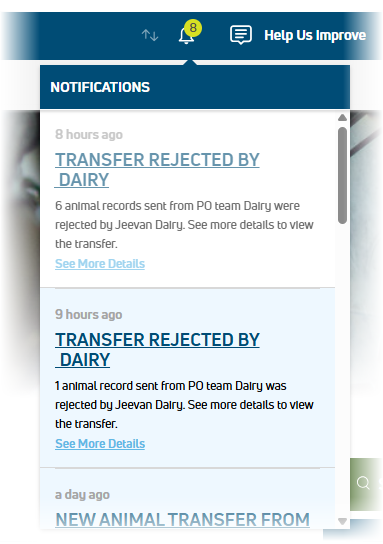
If your dairy has pending transfers, PULSE shows notifications
at the top of the page and in your Message Center. Click the link to review the pending or sent animals. 
PULSE also sends the dairy owner an email when animals are sent or received. If transfers are not accepted or rejected within 10 days, PULSE sends the dairy owner a reminder.
 Check Connected Farms & Mapped Events
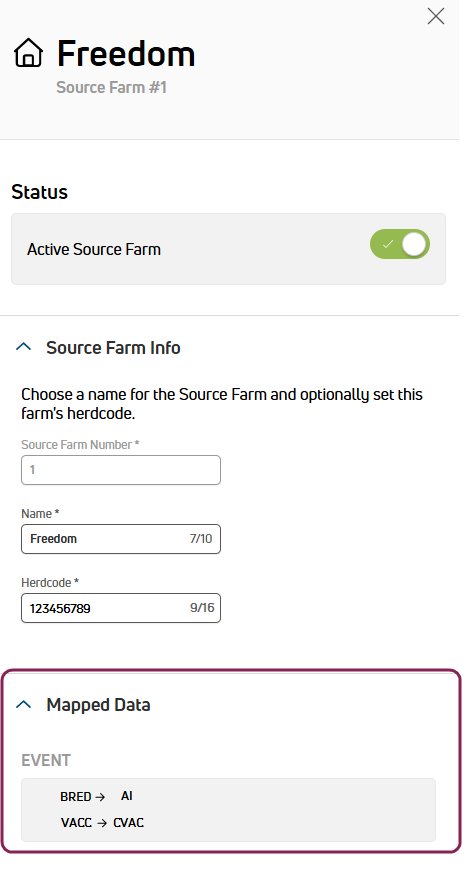
Use the Source Farms Settings page for a list of connected farms and dairies. Each farm is identified as a sender, receiver, or both. Click the source farm name to view additional details about the farm, including any Mapped Events. The event name on the left is the source farm event. For instance, the BRED event in the source farm is mapped to the AI artificial insemination event in the current dairy in this example:
Restore an Animal
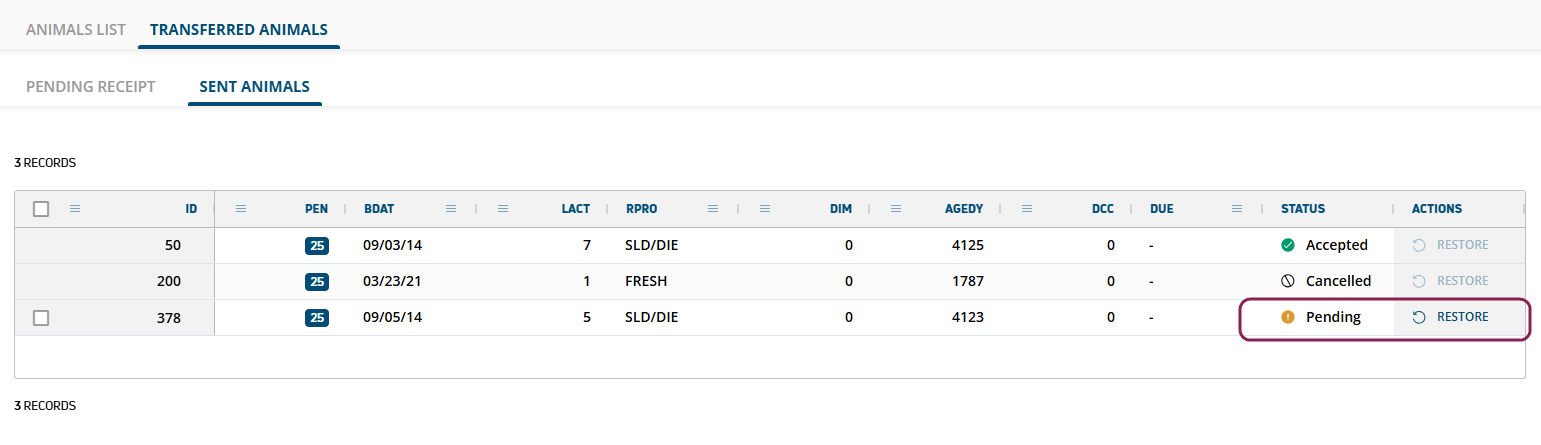
If you accidentally initiate the transfer of the wrong animal, you can restore it before the receiver dairy or farm accepts it.
- Go to DairyComp/MyDC > Animals > Transferred Animals > Sent Animals tab.
- Click Restore to return the animal to your herd.
 NOTE: If the receiver dairy has already accepted the transfer, the Restore option is no longer available. Contact the destination dairy or farm if a new transfer needs to be initiated from their side.
 -
After you restore an animal, the Status of the transfer is set to Cancelled.
 Important Distinctions
Event Mapping
- DairyComp Unlimited dairies have the option to map events if the sender dairy has different event names. For instance, the sender dairy may have different vaccination codes, breeding event names, or custom health events. Event mapping allows you to match those unfamiliar events to ones your dairy does use, which preserves key animal data. PULSE saves your event mapping settings, so the next time you buy or receive animals from the same dairy, the transfers can be completed quickly.
- MyDC dairies have standard events, so transfers between MyDC dairies will not require event mapping.
- For transfers received by a MyDC dairy from a DairyComp Unlimited dairy, only standard items are automatically mapped.
- If you choose not to map an incoming event, that event is not saved to the animal's record.
- You can map multiple events from the sender dairy to the same event in the receiver dairy. For instance, the sender dairy may have multiple vaccination events, and the receiver dairy has only one event, VACC.
Discoverable Dairies
- Discoverable dairies: Automatically connect to receive transfers.
- Non-discoverable dairies: Manually enter the 8-digit herdcode when initiating a transfer. (If you do not have the herdcocde, contact the dairy.) The dairy owner then receives a connection request from the source farm via email (or in PULSE notifications at the top of the page and in your Message Center). After the dairy accepts the request, you can review animals pending transfer.
Transferring Animals in DairyComp
DairyComp Unlimited dairies can also manually move animals in DairyComp using the PUTCOW and GETCOW commands, but VAS recommends using PULSE for standard animal movements between dairies to benefit from the following:
- A guided workflow
- Automated data mapping
- Safety checks to prevent duplicate records
Reserve the GETCOW/PUTCOW commands in DairyComp for technical file operations, such as manually recovering a specific animal record from a backup or archive file. See Transfer Animals from One Dairy to Another to learn more about moving animals in DairyComp.