View Progress on All Open Worklists
Use the Open Worklists page to monitor the status, details, and progress of all current worklist A worklist is a structured list of tasks or animals requiring attention, typically used to organize and prioritize work. In PULSE and the mobile app, worklists identify animals that need to be seen by dairy workers or animal health experts for specific reasons, such as pregnancy checks or treatment in a hospital pen. types:
- To-Do Lists
- Vet Lists
- Hospital Lists
- Event Lists
- Open Tasks Lists
- All List Types (the default selection)
Follow the guidelines below to monitor your worklists:
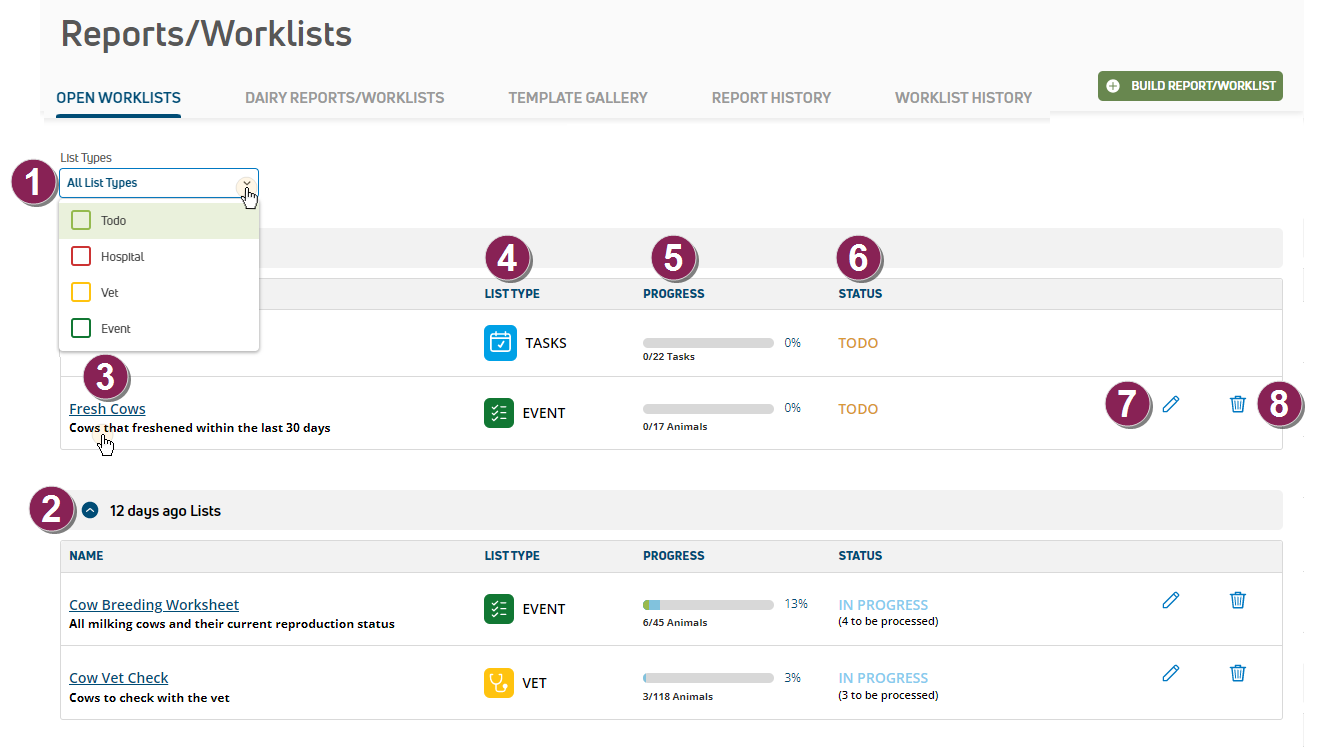
- List Types: Use this filter to select the types of worklists to view on screen. Once you select a worklist type, you can click Clear Filter to de-select it.
- Use the expandable sections on the Open Worklists page to view the status of all current worklists that have been updated today Today's date are grouped at the top. Below that, you will find other expandable sections that show the status of worklists that were in progress before the current day.
- Name: This column shows the list name and the corresponding DC305 DairyComp 305 - VAS Dairy Management Software list command. Click the name of each list to view more details on the Reports/Worklists Results page.
- List Type: The type of list:

Event List

Hospital List

To-Do List

Vet List

Open Tasks List
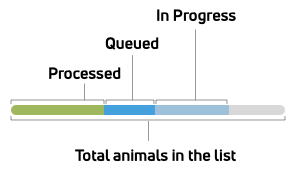
- Progress: The Progress column displays how much of the list has been completed against the total, both in percentage and for the number of animals. The visual progress bar makes it easy to glance at the page and assess the current progress for all lists. See the image below to learn more about the colors in the progress bar.
- Status: The Status column reflects whether work has started on the list, and if so, how far along it is. The possible status messages are:
- TODO: No changes have been made to the list yet.
- IN PROGRESS: One or more users have marked at least one animal as DONE, but no one has yet tapped the Process Changes button in the mobile app (i.e., at least one person is working on the list and marking animals as DONE
- QUEUED: After a user taps the Process Changes button in the mobile app and sends the list updates back to PULSE
- PROCESSED: This status means that the list updates are complete and PULSE has updated the records for the animals that were marked as DONE.
For more information on worklist status, see View Animal Status in the Mobile App (v1) or Complete Tasks (v2).
- Edit worklist: Click the
 icon to open a window in which you can edit the name of the worklist and add/edit its description.
 - Delete worklist: Click the
 icon to delete the applicable worklist. You will be asked to confirm your choice before proceeding.